Update
On Windows, macOS, and Android, Firefox 120+ automatically trusts third-party root certificates installed in the operating system’s trust store, with this feature enabled by default. On Linux, this is not enabled by default, so you may still need to import Caddy’s CA manually.
When running Caddy locally, it will also generate its own local Certificate Authority (CA). Caddy will use this CA to sign certificates for local HTTPS.
This is pretty cool!
When Firefox uses the operating system trust store, Caddy’s local HTTPS works if its CA is trusted there.
If that trust is unavailable, Firefox will show the error code SEC_ERROR_UNKNOWN_ISSUER when visiting https://localhost.
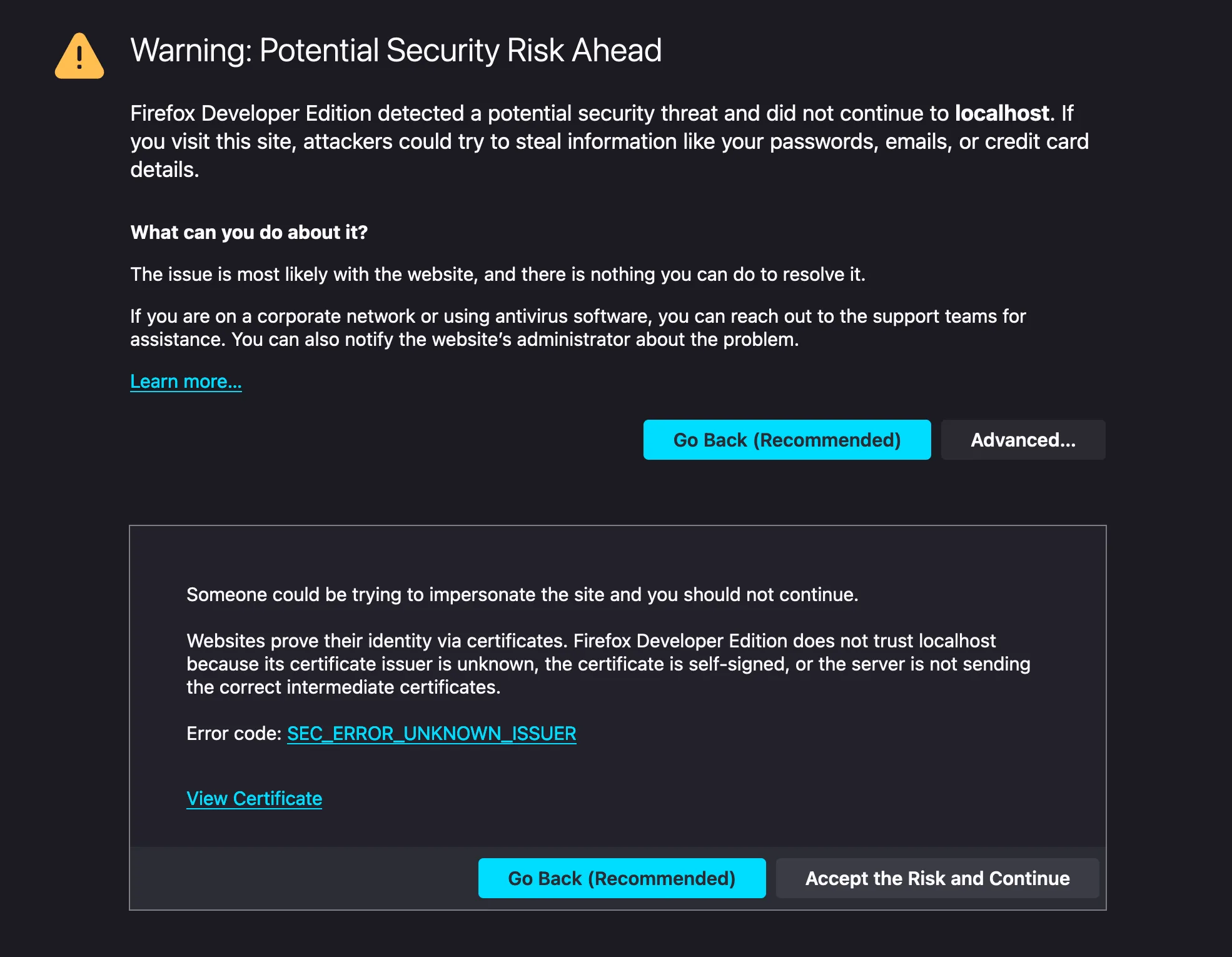
If Firefox does not recognize the CA from the operating system trust store, you can manually import Caddy’s local root certificate into Firefox.
How to import Caddy’s local root certificate into Firefox?
-
Open Firefox and go to
about:preferences#privacy. -
Scroll down to the
Security > Certificatessection and clickView Certificates.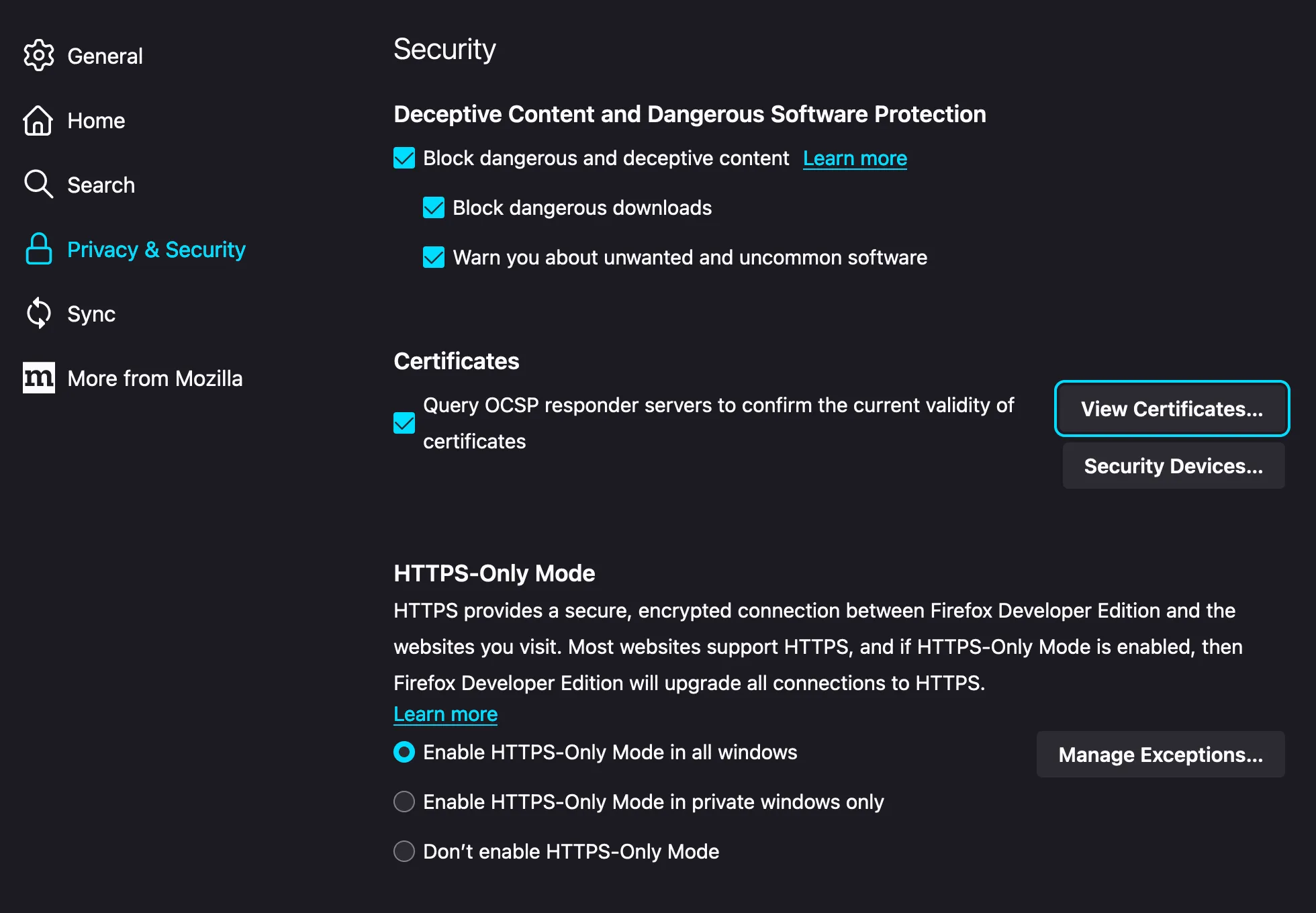
-
Select the
Authoritiestab and clickImport.
-
Find Caddy’s local root certificate in its data directory and open it. On a Mac it’s located at
~/Library/Application\ Support/Caddy/pki/authorities/local/root.crt.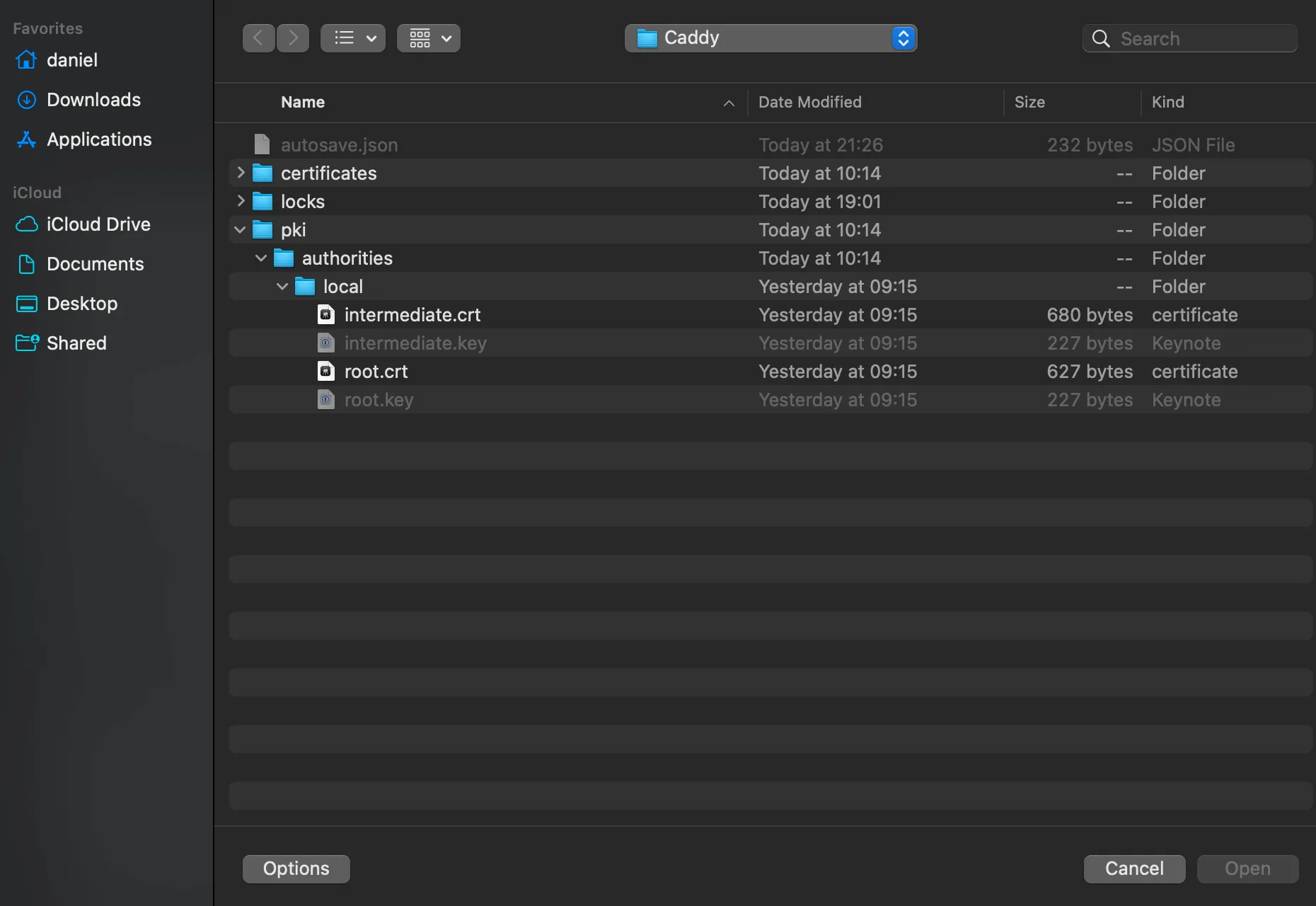
-
Check the
Trust this CA to identify websitescheckbox and clickOK.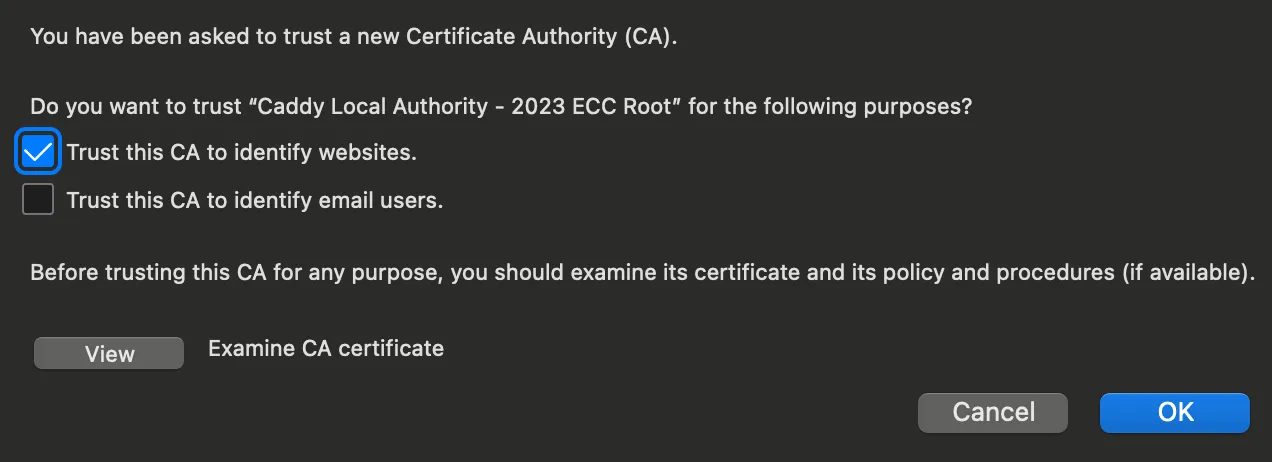
-
The
Caddy Local Authorityshould now be listed in theAuthoritiestab.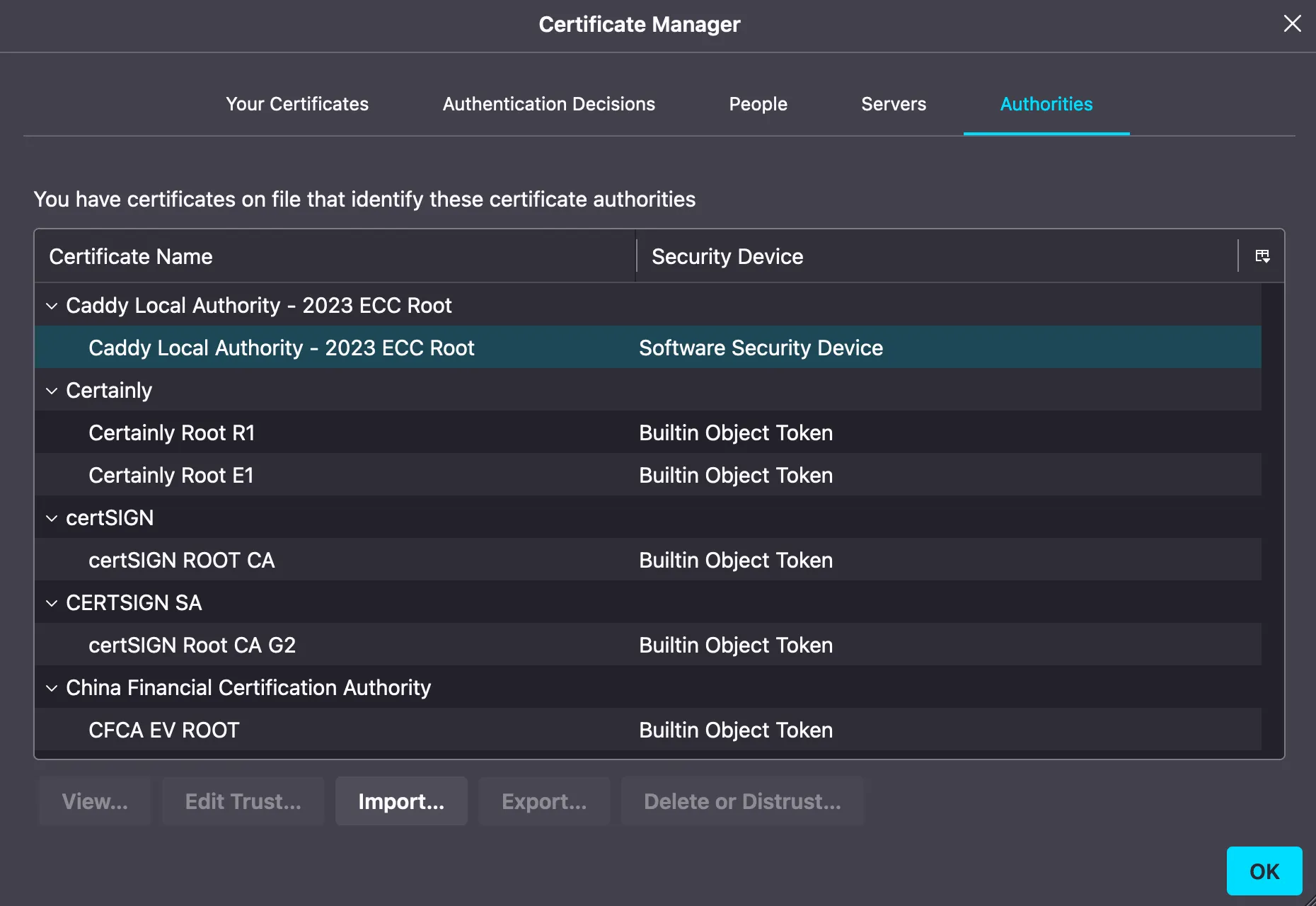
-
Restart Firefox, and accessing localhost over HTTPS will now work!